 WhatSync

Connect WhatsApp to Meta Muse
Ask Muse to build a WhatSync connector, sign in, and ask Muse about your chats. It takes about 2 minutes and your WhatsApp keeps working as normal.
What you can do
Ask Muse to catch you up, find a message by an order number, or turn a day of chats into a list. Here is the catch-up from the video.
Catch me up on my WhatsApp since this morning.
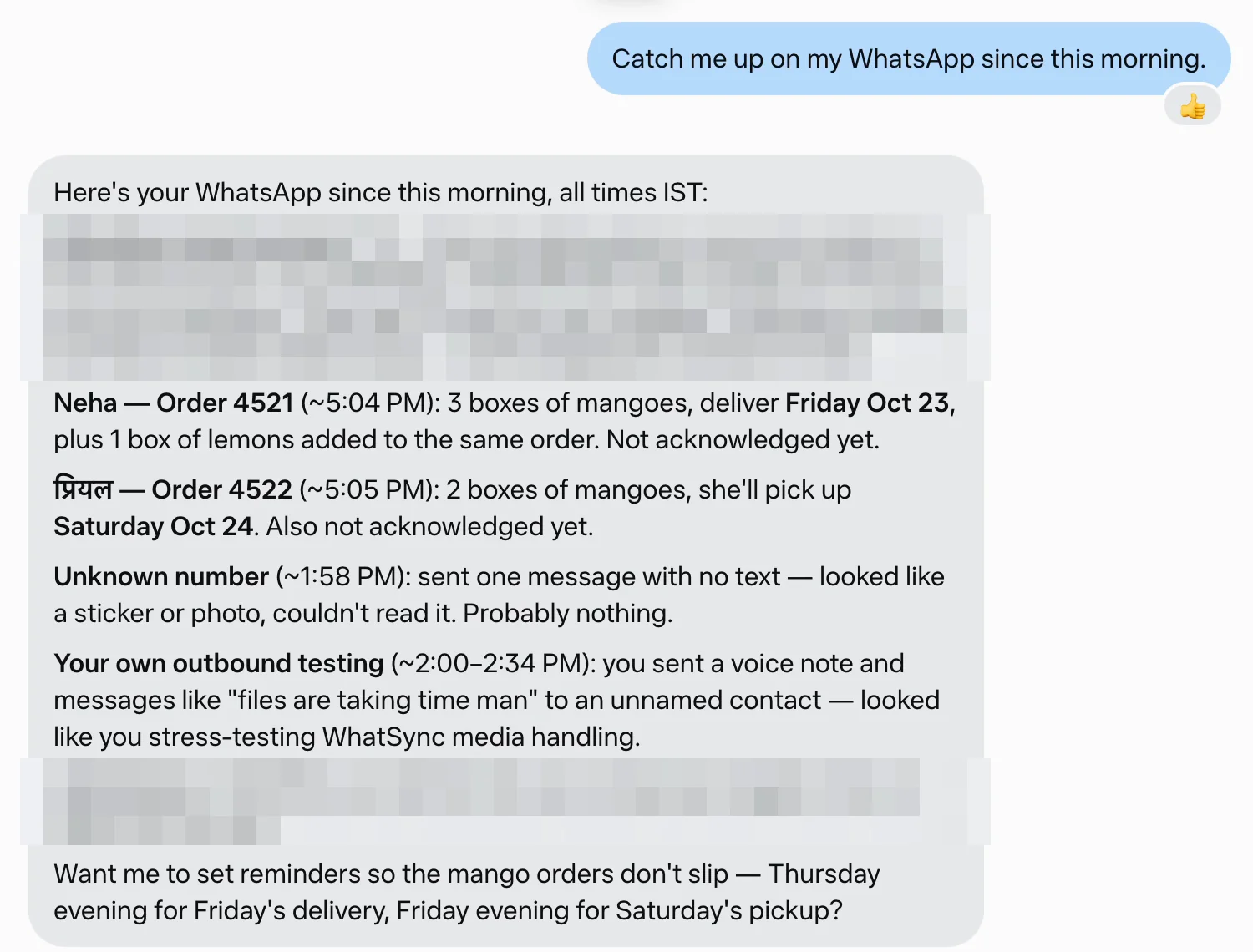
Watch the setup
The 1 minute 27 second video covers asking Muse for the connector, signing in, and the first questions. Follow the same steps below.
Step 1: Ask Muse for a connector
Muse builds custom connectors itself when you ask. Copy this message, start a new chat with Muse, and send it.
Create a custom connector for WhatSync. It is a remote MCP server (streamable HTTP) at https://whatsync.app/api/mcp. Use OAuth sign-in if you can. If not, ask me for an API key.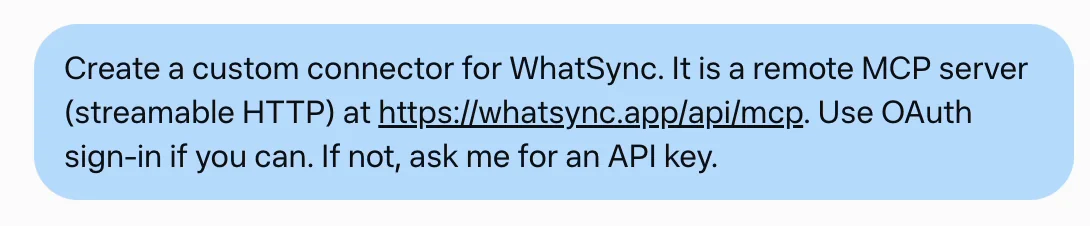
- Muse replies with a Whatsync connector card. Click Connect.
- Muse shows what the connector can do. Click Connect again.
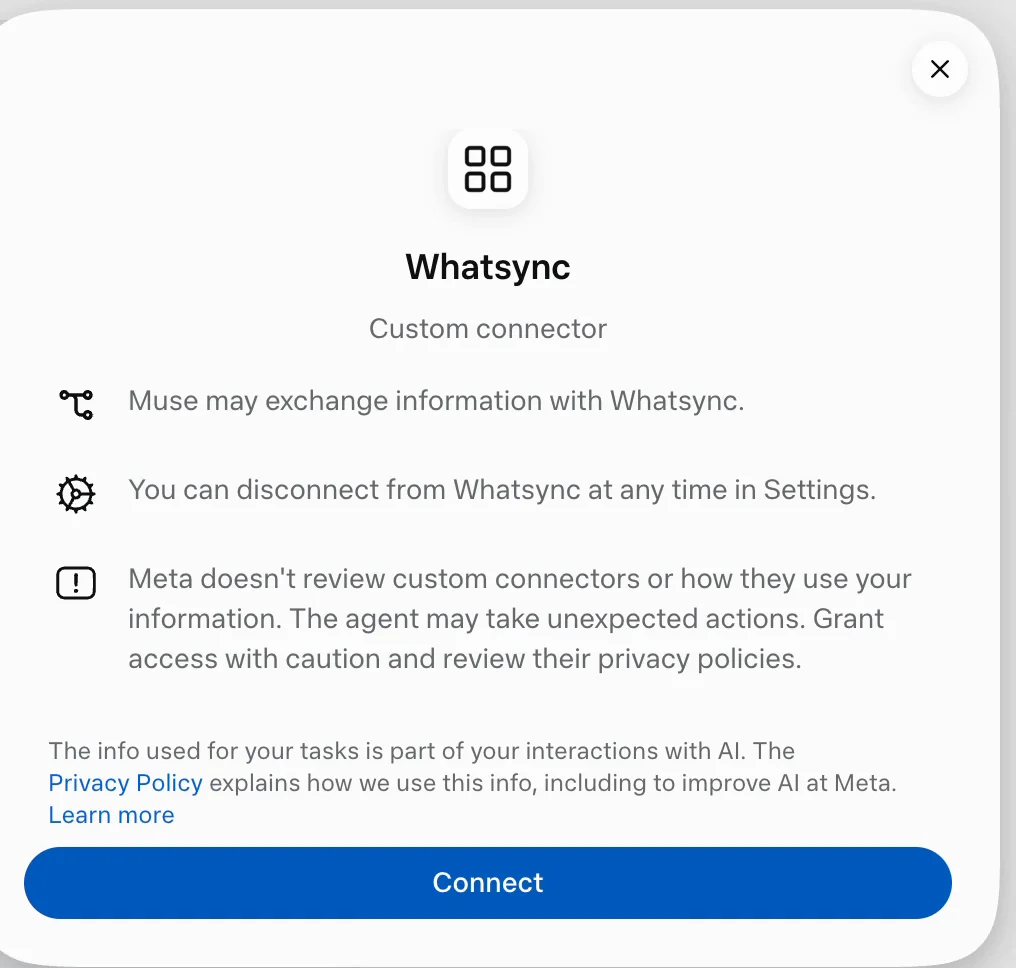
Muse can take a minute to set up the connector. If it asks for an API key instead, create one on the Developers page of your dashboard and paste it into Muse's secure credentials prompt, never into the chat.
Step 2: Sign in to WhatSync
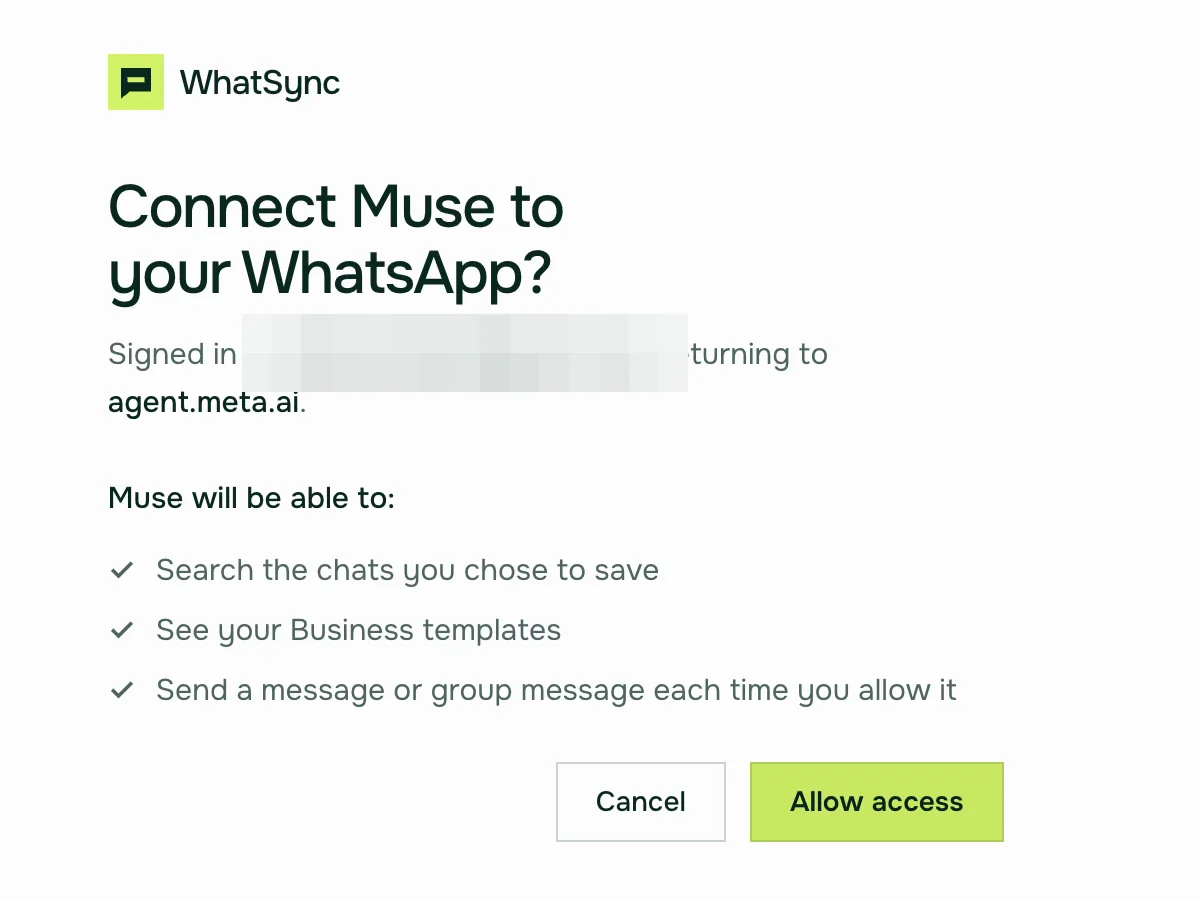
Muse opens the WhatSync sign-in. Use Google or an email code. If you are new to WhatSync, signing in creates your account.
- Sign in with Continue with Google, or enter your email and the code from your inbox.
- Check what Muse will be able to do, then click Allow access.
- You return to Muse, which confirms that WhatSync is connected.
Step 3: Link your WhatsApp
Skip this if your WhatsApp is already linked. Otherwise open your dashboard and link your personal WhatsApp from Linked devices on your phone, or connect the WhatsApp Business API.
- Open your WhatSync dashboard and follow the steps to link your WhatsApp.
- On What's saved, turn on saving, pick the groups to include and keep any person out. Groups stay off until you pick them.
Muse sees messages saved from the moment you turn saving on, not your whole WhatsApp history.
Step 4: Ask Muse about your chats
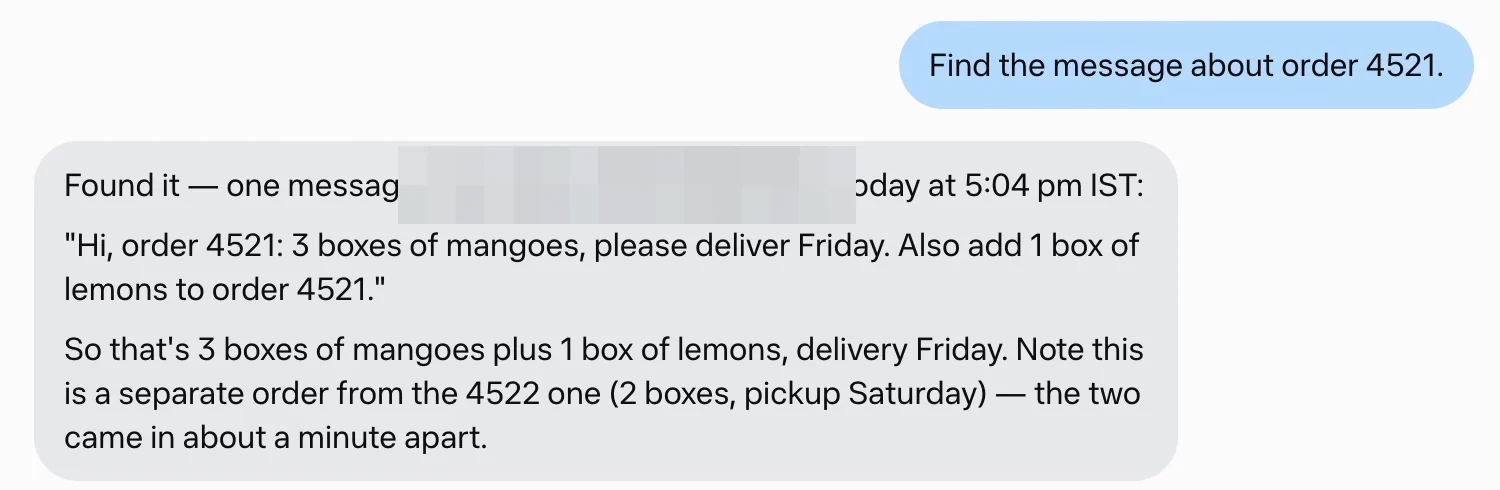
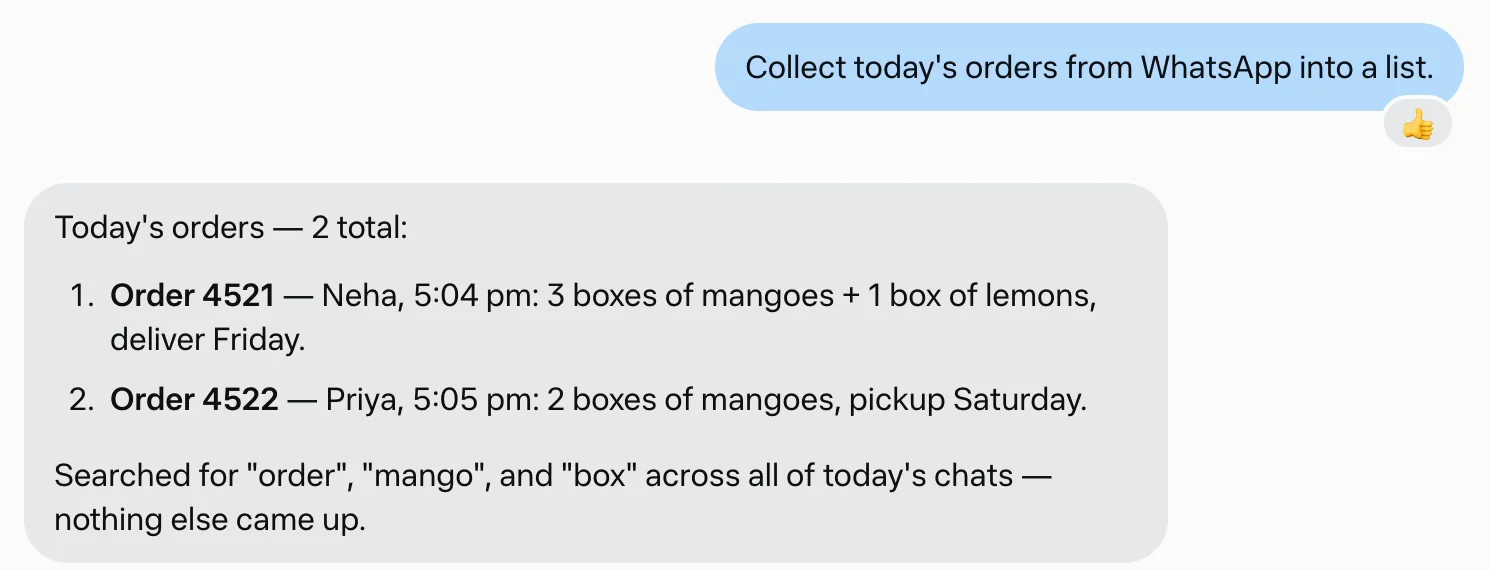
Go back to Muse and ask. In the video, Muse found an order by its number, then put every order from the day into one list.
Find the message about order 4521.
Collect today's orders from WhatsApp into a list.
What people ask
These are the kinds of questions WhatSync users ask most. Catching up on a time range is by far the most common.
Catch up
Catch me up on my WhatsApp since this morning.
Find a message by a number
Find the message about order 4521.
Check on a job
What's the latest on the website launch? Did the designer send the files?
Turn chats into a list
Collect today's orders from WhatsApp into a list.
If something goes wrong
- Muse says the connector exists but can't reach it
- A connector signed in from one Muse chat may need its own sign-in in another chat. Ask Muse to connect WhatSync again in the chat you are using, click Connect, and allow access.
- Muse finds nothing
- WhatSync only has messages saved after you linked WhatsApp and turned saving on. Check that the chat or group is allowed on the What's saved page, send yourself a new message, and ask again.
- The sign-in doesn't stick
- Ask Muse to use an API key instead. Create one on the Developers page of your dashboard and paste it into Muse's secure credentials prompt, never into the chat. API keys come with plans that include the API.
- Muse is slow to answer
- Muse works through tasks step by step, so an answer can take a minute or more. That is normal.
Questions
- Can Meta Muse use WhatsApp?
- Yes, through a custom connector. Ask Muse to create one for WhatSync, sign in, and it can search the chats you chose to save and, if you allow it, send messages.
- Is WhatSync made by Meta?
- No. WhatSync is made by Appstronauts. It is not made by, affiliated with, or endorsed by Meta or WhatsApp.
- Can Muse read all my WhatsApp chats?
- Muse can only see what WhatSync saves, and you choose that. Groups are off until you pick them, and you can keep one-on-one chats with certain people out.
- Can Muse send WhatsApp messages for me?
- Yes, if you allow it. Keep Muse set to ask before important actions so it checks the recipient and text with you before sending.
- Will Muse see my old messages?
- WhatSync saves new messages from the moment you link and turn saving on. It does not import your old history.
- How much does it cost?
- See the pricing page for the current plans.
Still stuck?
Tell us what happened and we will help you get connected.